 Chatdex
A prompt library for ChatGPT, Claude and Gemini
Chatdex’s prompt library lets you save prompts with tags and {{variables}}, insert them into ChatGPT, Claude or Gemini with one key press, and share single prompts or whole sets with your team as a link. It is free, needs no account, and stores your prompts in your browser.
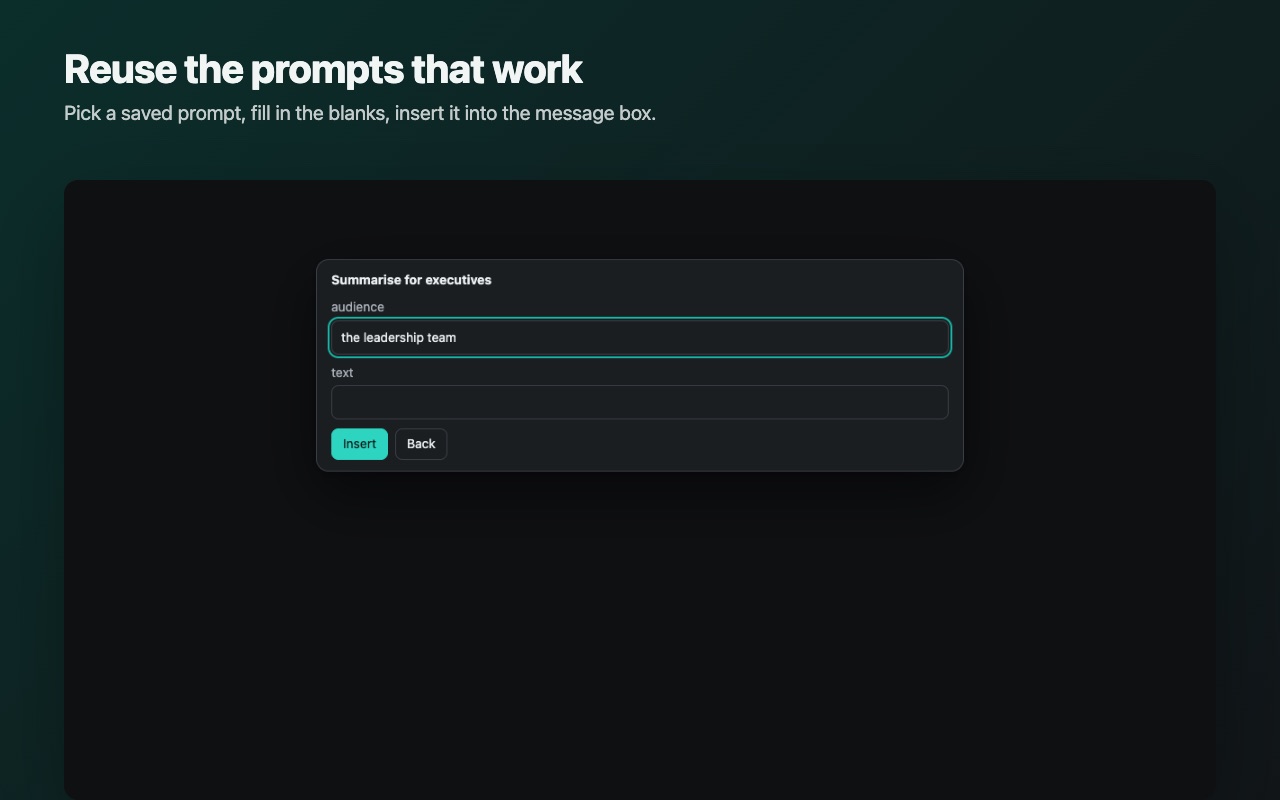
Save prompts you use often
Save a prompt from the Chatdex library, or save what you have typed in the ChatGPT, Claude or Gemini message box. Give each prompt a title and tags so you can find it later. Chatdex keeps a count of how many times you have used each prompt.
Use {{variables}} for the parts that change
Write placeholders in double curly braces wherever a prompt needs different details each time. For example:
Summarise the following {{document type}} for {{audience}} in {{number}} bullet points. Keep the tone {{tone}}.When you insert the prompt, Chatdex asks you to fill in each variable first, then puts the finished text into the message box.
Insert into ChatGPT, Claude or Gemini
- Open ChatGPT, Claude or Gemini with that site switched on in Chatdex.
- Open Chatdex and find the prompt by title, tag or text.
- Insert it with one key press. If it has variables, fill them in first.
- Review the text in the message box and send it as usual.
Share prompts with your team
Create a share link for a single prompt or for a whole set of prompts (a team link). Send it however you normally share links: chat, email or a team wiki.
- No server, no account. The prompts are compressed into the part of the URL after
#. Browsers do not send that part to any server, so the link works without Chatdex storing anything. - One click for Chatdex users. A recipient who has Chatdex sees an “Add to my Chatdex” button that adds every prompt in the link to their library.
- Copy for everyone else. Recipients without Chatdex can read the prompts and copy each one.
- Files too. You can also export prompts as a JSON file and import them in another browser.
For a step-by-step walkthrough, read how to share AI prompts with your team.
Treat a share link like the text inside it. Anyone you forward it to can read the prompts, so leave out passwords, customer data and anything else you would not paste into a chat message.
Common questions
Do people I share prompts with need Chatdex?
No. Anyone with the link can open it in a browser, read the prompts and copy them. If they have Chatdex installed, they can add the prompts to their own library in one click.
Is a share link stored on a server?
No. The prompts are compressed into the part of the link after the # sign. Browsers do not send that part to the website, so the prompts never reach Chatdex’s web host. Anyone who has the link can read the prompts, so share it only with people you want to see them.
Can I edit prompts after sharing a link?
A link is a copy of the prompts at the moment you created it. If you change a prompt later, create a new link and share that.
Can I back up my prompts?
Yes. Export your prompts as a JSON file and import that file again later, or in another Chrome profile.